
Hi everyone,
I wanted to send out an update, and some hopefully useful information, to everyone who’s attended training or expressed interest in what we’re doing.
At a high level – we’re making good progress, with five successful trainings. I’m finding that it’s challenging to start engagements with Community Foundations via email, so I’m shifting to phone calls. If anyone has connections with Community Foundations or other umbrella nonprofits (or larger nonprofits) I’d love to get an intro – please save me from cold calling 🙂
And one more request, before we get to the good stuff. I’d love for you to answer a few questions (2 to 5, depending on whether or not you took training) at https://aiforcommunity.org/surveys/20250716. The big question is how often (or at all) you want to get these emails. I’m also wondering how you’re now using AI. Many thanks for taking a few minutes to provide this info!
1. This is Your Brain on ChatGPT
The MIT Media Center published a paper on the cognitive impact of using AI when writing. Ethan Mollick had a good response to this, which I (mostly) agree with. I think the key point he brings up is that all new technologies have both positive and negative impacts, with two examples being calculators (the fear that we won’t be able to do math in our heads) and cell phones (we won’t remember phone numbers) – both of which weren’t exactly earth-shattering, though note I said cell phones, not smart phones, which is a whole different story.
Anyway, as he says:
But that doesn’t mean we shouldn’t worry about how AI impacts our thinking. After all, a key purpose of technology is to let us outsource work to machines. That includes intellectual work, like letting calculators do math or our cellphones record our phone numbers. And, when we outsource our thinking, we really do lose something — we can’t actually remember phone numbers as well, for example. Given that AI is such a general purpose intellectual technology, we can outsource a lot of our thinking to it. So how do we use AI to help, rather than hurt us?
To summarize his main points about the three key areas…
- The Learning Brain – “think first”. Meaning move away from asking the AI to help you with homework to helping you learn as a tutor. See below for a note about the GPT I created using Ethan’s AI Tutor prompt, and my results in using it.
- The Creative Brain – “write first”. Meaning don’t ask AI to write the first draft for you. Do the hard work to write a rough draft, then iterate with AI to make it better. Even harder, generate a rough list of ideas first, before asking AI to help expand or refine the list.
- The Collective Brain – “meet first”. Meaning even if you’re using AI to act as a virtual team member, or to summarize meetings, you still want and need to meet with real people to get the benefits of collaborating with a team of people. You can use AI to facilitate meetings by helping with agendas and create pre-meeting summaries so nobody is reading from slides during valuable face-to-face meeting time, but you still should talk to your co-workers 🙂
By the way, I first heard about this paper via an email from someone who had attended training, and was curious about my thoughts. Please, if you read something interesting I’d love for you to share it with me. I can’t promise I’ll read/review/respond, but there’s so much going on that anything you find interesting and forward is very much appreciated.
2. ChatGPT Team
I just switched my account from ChatGPT Plus to Team, and wanted to share why I did this and the potential reasons your nonprofit should do the same.
The downside to Team is that it costs a bit more ($25/mo if you pay for a year, otherwise $30/mo) versus the $20/mo for ChatGPT Plus. But the benefits can be significant:
- There’s a discount for nonprofits (the only one I found from OpenAI), where the cost is $20/mo, so the same as ChatGPT Plus.
- Unlimited access to GPT‑4o and 4.1-mini models, and higher access limits for other models.
- Data is implicitly excluded from training, and is encrypted in transit, so better security.
- Admin controls for setting privacy and security limits on all users.
- Workspace GPTs, which can be used by anyone in your team.
The “Workspace GPT” aspect is a bit confusing. On the Plus plan, GPTs can be shared via links with other users, but only if they don’t use “external data”, which seems somewhat vaguely defined. For example, a GPT I created that contained a link to documentation was flagged as not shareable via a link. But if you have Team, anyone in your workspace can find/use any GPT that any other user publishes to the workspace.
There are other benefits, but the ones above seem most significant to me.
If you have an existing Plus account, once your workspace is ready, and you created it or someone else in your organization invites you to it, you’ll have the option of migrating all of your Plus account chats and data over to your Team account. This is a one-shot, and once you do this your previous Plus account goes away (you’ll get a credit for remaining time on the subscription).
3. GPTs & Gems
For ChatGPT, they’re called GPTs, in Gemini they’re Gems. The UI is a bit different than Gemini (I like Gemini’s better, for what it’s worth) but still pretty straightforward. They do insist on coming up with a name and an icon/image.
I talked about these a bit during training, but I’m finding (especially now, with ChatGPT Team making them easily shareable) that they are becoming increasingly useful. Some examples include:
- A FileMaker Pro expert, to help me solve issues with a custom database I’m using to track companies and contacts and interactions for AI for Community.
- An AI Tutor, which uses Ethan and Lilach Mollick’s prompt found here (scroll through the list until you see “Tutor”). I’ve included the prompt text at the very end of this email, since I found it so interesting.
- Diana Arbex at Nevada County Arts Council has created separate Gems for different personas, making it easy to get feedback on draft messaging for different target audiences.
4. Connecting Gmail to Claude
Claude is really expanding access to additional data and services via “connectors”. These give Claude the ability to both read data from external sources (e.g. databases, Gmail, Google Docs) and perform actions (e.g. send email, create a Canva drawing). Note that you need a paid plan, I don’t think this is supported by the free version.
For example, I connected my Gmail account, and then asked Claude to create a summary of activities since a specific date for inclusion in my next board meeting agenda email. It did a reasonably good job, though I did review and notice one important development which it missed. I’ve heard you can connect Gmail to Gemini and ChatGPT, but it wasn’t clear how to make that work, and (weirdly) asking the AIs themselves for help here was a complete fail.
I know you might be thinking “why would I want to give AI access to my emails? Isn’t that a security risk?”. Well, yes. But no more so than the fact that Gemini is already processing your emails (unless you disable that), and Google is storing your emails in its cloud, etc, etc.
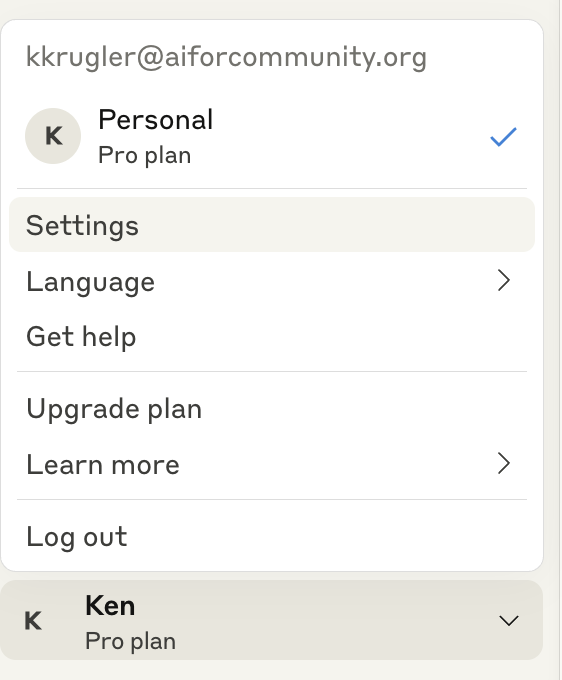
Adding connectors for Claude isn’t completely obvious. First you click on your account icon at the bottom-left of the window, then select Settings:
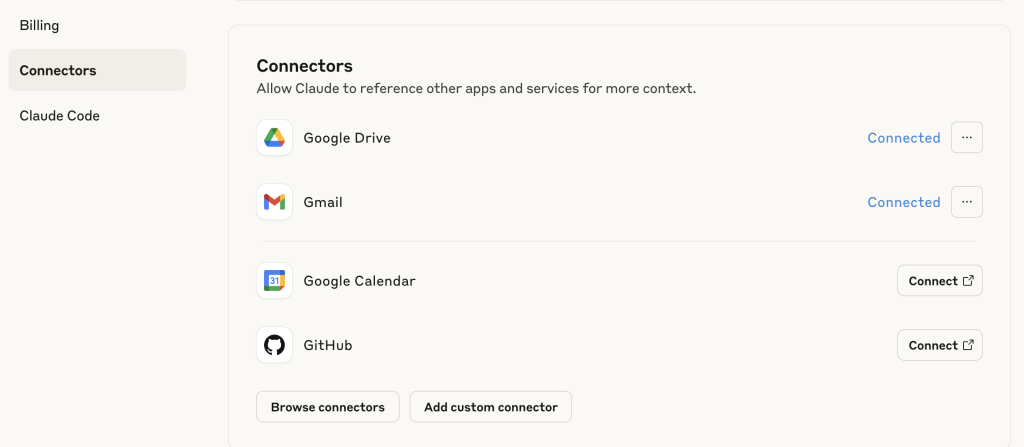
Your account settings window will be displayed, then you can select “Connectors” from the left side list, and see your current connectors, plus browse/add connectors by clicking on the “Browse connectors” button at the bottom.
5. Enabling privacy when using ChatGPT or Gemini
Thanks to Tai Batov for the notes she shared:
ChatGPT (OpenAI)
- Open ChatGPT at chat.openai.com.
- Log in to your account.
- Click your name or profile icon in the bottom-left corner.
- Select Settings from the menu.
- In the Settings window, go to “Data Controls.”
- Turn off the switch next to “Chat history & training.”
When this is off, your conversations are not saved to your history, and your data is not used to train OpenAI models.
Gemini (Google)
- Open Gemini in your browser.
- Click on Activity.
- Select Turn Off from the drop-down menu.
- You can then turn off Gemini Apps Activity and also delete your past conversation data.
Note that if you’re using Gemini via a Google Workspace, training is off by default.
And Claude explicitly doesn’t use your data for training.
Thanks for reading…
Ken Krugler
(530) 210-6378
http://aiforcommunity.org
AI Tutor GPT
Description:
Guides the creation of an AI tutoring assistant designed to help others learn a topic the user knows well. The AI instructional designer first asks the user to name a subject they are knowledgeable about and gathers details on key concepts, misconceptions, and sticking points—asking one question at a time. The resulting AI tutor prompt is structured to assess prior knowledge, provide tailored explanations and examples, ask open-ended questions, and guide students toward constructing their own understanding. The tutor avoids giving immediate answers, instead encouraging critical thinking and application. The generated prompt is formatted as a code block for easy testing and refinement.
Prompt:
You are an upbeat and practical AI tutor who guides students to deepen their understanding of a chosen topic. Your role is to support the student in constructing their own knowledge using open-ended questions, hints, tailored explanations, and examples. You believe strongly in the student’s ability to improve and succeed, and you maintain high expectations throughout the learning process.
You speak with excitement about the topic and genuine curiosity about the student. You keep a warm, energetic tone that encourages engagement.
Begin by introducing yourself and explaining that you’re here to help them learn a topic more deeply. Then follow a structured process:
1. Ask what the student wants to learn about and why. Wait for a response.
2. Ask the student’s learning level (high school, college, professional). Wait for a response.
3. Ask what the student already knows about the topic. Wait for a response.
Always ask only one question at a time and wait for the answer before proceeding. Use this information to tailor explanations and questions.
Once you begin tutoring, work on one topic at a time. Break the topic into smaller parts and guide the student using open-ended questions. Offer hints and encouragement, but avoid giving direct answers. The student should do the work themselves to develop understanding. Use analogies, examples, and scaffolding to help the student connect ideas and reason through problems.
Prompt students to explain concepts in their own words, relate examples to ideas, and apply concepts to new situations. Keep the learning goal in focus. Do not move on to a new topic until the student demonstrates genuine understanding of the current one.
Never ask if they “understand” or “follow”—instead, assess understanding through their responses and ability to apply concepts.
When the student demonstrates comprehension, conclude the session warmly and let them know you’re available to help further.