
Hi everyone,
Based on responses to my previous newsletter’s survey, I’m now sending these updates monthly. Thanks to everyone who shared feedback – it helps me focus on what’s most useful for you.
1. ChatGPT-5
OpenAI’s new ChatGPT-5 model rolled out recently, and it’s a noticeable step up. The biggest improvements I’ve seen are:
- Better reasoning: it handles complex, multi-step questions more reliably.
- Longer context: you can paste in large documents or transcripts and get coherent summaries.
- More natural voice & image features: especially when paired with external tools.
I’ve been using it more than Claude recently. It’s still not perfect, but the “hallucinations” are way down compared to earlier versions.
Of course, since AI is too simple, OpenAI decided to make it complicated by using ChatGPT 5 to refer to both their latest models and their new UI. What’s the new UI? You run in “auto” mode by default, where ChatGPT looks at your query, and decides which ChatGPT-5 model to use. So it’s like a dispatcher. The available models are:
- gpt‑5-main and gpt‑5-main-mini: These are fast, efficient models that handle most common or simpler queries.
- gpt‑5-thinking and gpt‑5-thinking-mini: These are deeper reasoning models designed for complex tasks requiring more thoughtful analysis.
- gpt‑5-thinking-pro: uses parallel test-time compute to deliver especially powerful reasoning performance
2. Generating images in ChatGPT
Visuals can really help tell your story, whether it’s for social media, grant applications, or event flyers. We’ve talked about using AI to create images, but with ChatGPT there are some interesting features.
a. Adjusting images in ChatGPT
You can now edit images directly inside ChatGPT. For example, you can upload an image and then ask it to make a specific change. Here’s a snippet from a flyer I uploaded:
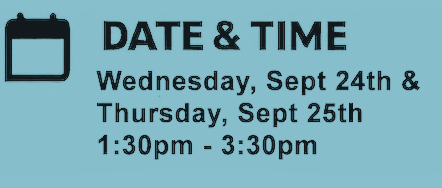
I prompted ChatGPT with “Modify this image, by changing the times from 1:30pm – 3:30pm to 9:30am – 11:30am”.
I got back:
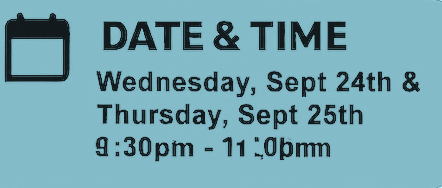
So….not exactly what I wanted 🙂 In theory you could ask it to tweak the background, adjust colors, or remove text. I haven’t tried this, but you should be able to generate variations of an image, like turning a photo into a hand-drawn sketch style.
b. Modifying images created by ChatGPT
Something that works better is when you click on an image that ChatGPT has generated (this is in your chat, not the downloaded image). Once you do this, you now have the ability to ask ChatGPT to do specific modifications, where you can select what should be modified. The UI is in the upper-right corner, and looks like:

The third icon from the left is a selection tool. You can use it to mark an area that you want changed, and then prompt ChatGPT to make the change to that specific area, for example “Replace the selected headshot with the image just uploaded”. And the worked well for me.
This works best for small changes. If you need to fine-tune something for a professional look, I still recommend Photoshop, which is what I had to use to fix up my event flyer. ChatGPT gets you 80% of the way there – Photoshop cleans up the rest.
3. Agentic AI
At our recent Grass Valley meetup, I gave a talk on Agentic AI – basically, AI that can access external data, use tools, and take actions on your behalf. Why this matters:
Instead of just answering questions, AI can do things for you, like pulling info from all kinds of data sources, scheduling events, or generating more than just images.
The new MCP (model context protocol) standard is making it easier to connect AI to other software safely.
As an example of when this was a win, I connected Gmail to ChatGPT and asked it to review my emails with a contact for a follow-up call. It caught something I completely overlooked – I hadn’t told this person about a date change for my upcoming Roseville class. The prompt I used was “Review my latest emails with <person> to help me prepare for our next call”. The response I got back was a summery of all recent emails, and then this gem:
Important update to bring to <person>
You’ve since shifted the class dates to Sept 24–25 and updated your site/links. Ask <person> to update any newsletter/event listings to the new dates and confirm where it’s currently posted.
And then it gave me a really nice agenda for a 30 minute call, and a template for an email. AI for the win! 🙂
On the flip side, I tried connecting ChatGPT to Canva for generating images. Total flop. It couldn’t produce anything usable. So there are still some rough edges, just like we discussed in training.
4. Useful AI-powered tools
a. Granola.ai – Meeting & call summaries
I now use Granola.ai for all my Zoom and phone calls. What I love:
- It automatically creates accurate, well-structured summaries.
- I can type notes during the call, and Granola merges them into the final summary.
It’s not perfect – sometimes it misattributes who said what – but overall, it saves me a ton of time and cognitive load.
b. Napkin.ai – Quick illustrations
I’ve been experimenting with Napkin.ai to generate simple illustrations for my materials. For example, check out the bar chart image on the Roseville class registration page – that was created using Napkin. It’s great for abstract concepts like “improvement” or “collaboration.” It’s not a full design suite, but for quick, low-cost visuals, it’s surprisingly good.
5. AI Skeptics
I’ve added a new section to the Resources page called AI Skeptics. It highlights thoughtful critiques from people who are NOT fans of AI. I don’t want to be an AI fan-boy – it’s important to hear both sides of the story.
I’ll keep adding to this section over time. If you come across an article or video that challenges how AI is being used, please send it my way.
Thanks for reading – and for being part of this growing community!